
Home / Help / G-SOFT Supermarket Manager
Topic 4 of 16මාතෘකාව 4 / 16
Sell by weight (weighing scale)
Vegetables, fruit, rice and meat are weighed on a label-printing scale. Its label barcode tells the till the product and the weight.
Step 1 of 2පියවර 1 / 2
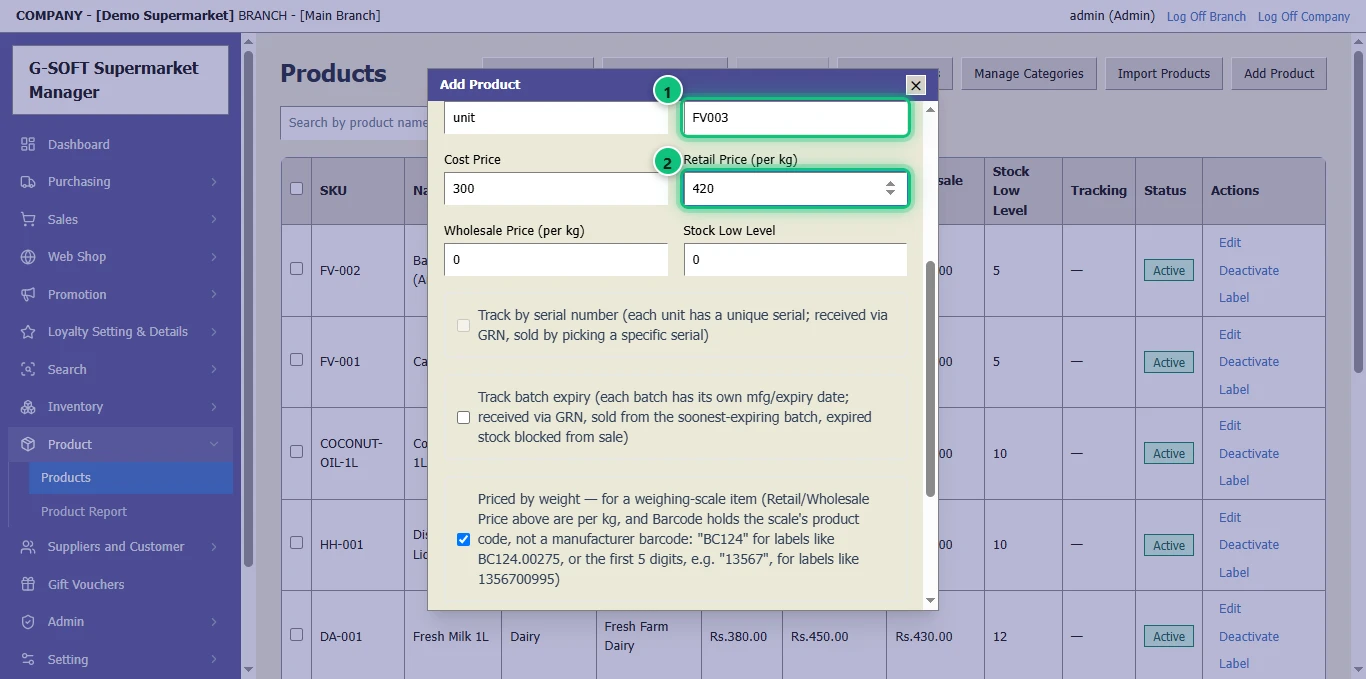
- Add the product as usual (see "Add a product").
- Type the product code you set on the weighing scale for this item as its Barcode 1 — for example FV003.
- Type the price per kg 2. Cost and wholesale prices are per kg too.
- සුපුරුදු පරිදි භාණ්ඩය එක් කරන්න ("භාණ්ඩයක් එක් කිරීම" බලන්න).
- තරාදියේ මෙම භාණ්ඩයට ඔබ දුන් භාණ්ඩ කේතය එහි Barcode 1 ලෙස ටයිප් කරන්න — උදා: FV003.
- කිලෝවක මිල 2 ටයිප් කරන්න. පිරිවැය සහ තොග මිල ද කිලෝවකටයි.
Step 2 of 2පියවර 2 / 2
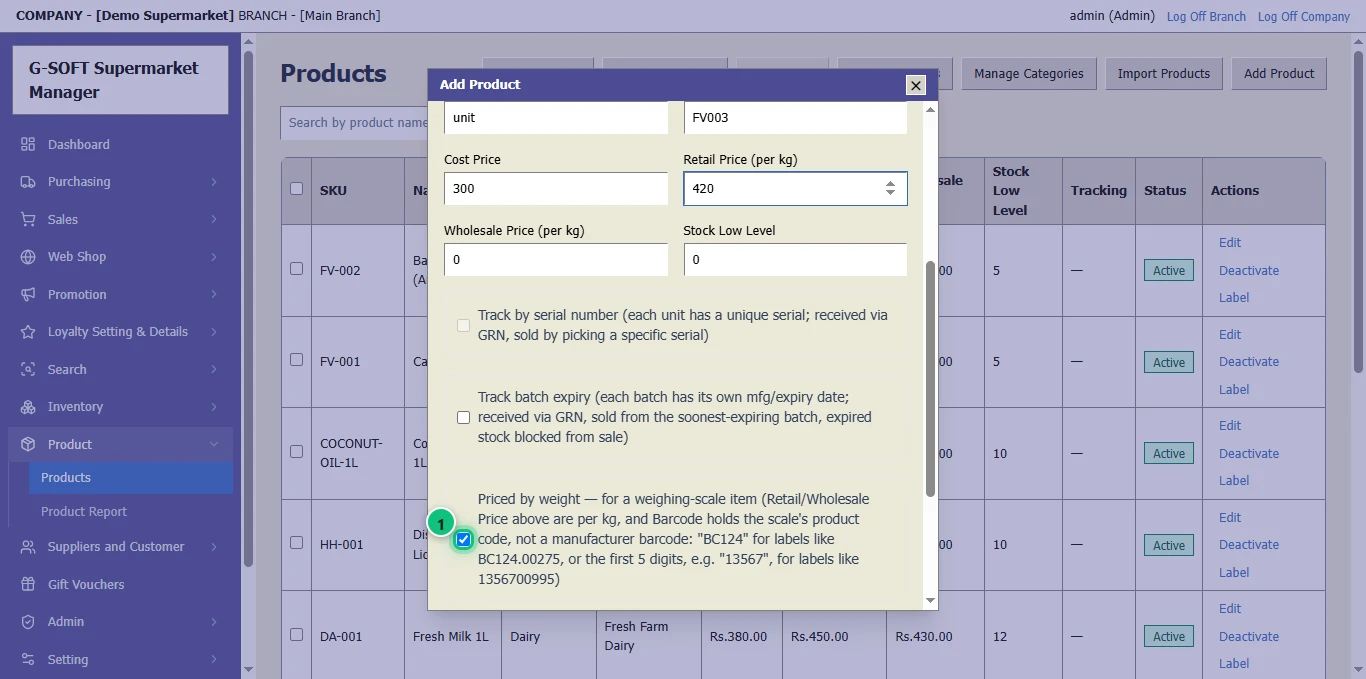
- Tick Priced by weight 1. The product is then sold in kg.
- Click Save and Next 2.
- At the till, scan the scale’s label (for example FV003.00750): the program reads the product code and the weight — 0.750 kg — and works out the price. See "Make an invoice".
- Priced by weight 1 සලකුණු කරන්න. එවිට භාණ්ඩය කිලෝ අනුව විකිණේ.
- Save and Next 2 ක්ලික් කරන්න.
- ටිල් එකේදී තරාදියේ ලේබලය ස්කෑන් කරන්න (උදා: FV003.00750): වැඩසටහන භාණ්ඩ කේතය සහ බර — කිලෝ 0.750 — කියවා මිල ගණනය කරයි. "ඉන්වොයිසියක් සෑදීම" බලන්න.