
Home / Help / G-SOFT Supermarket Manager
Topic 3 of 16මාතෘකාව 3 / 16
Add a product
Add each item you sell once. After that it can be received in a GRN and sold on invoices.
Step 1 of 5පියවර 1 / 5
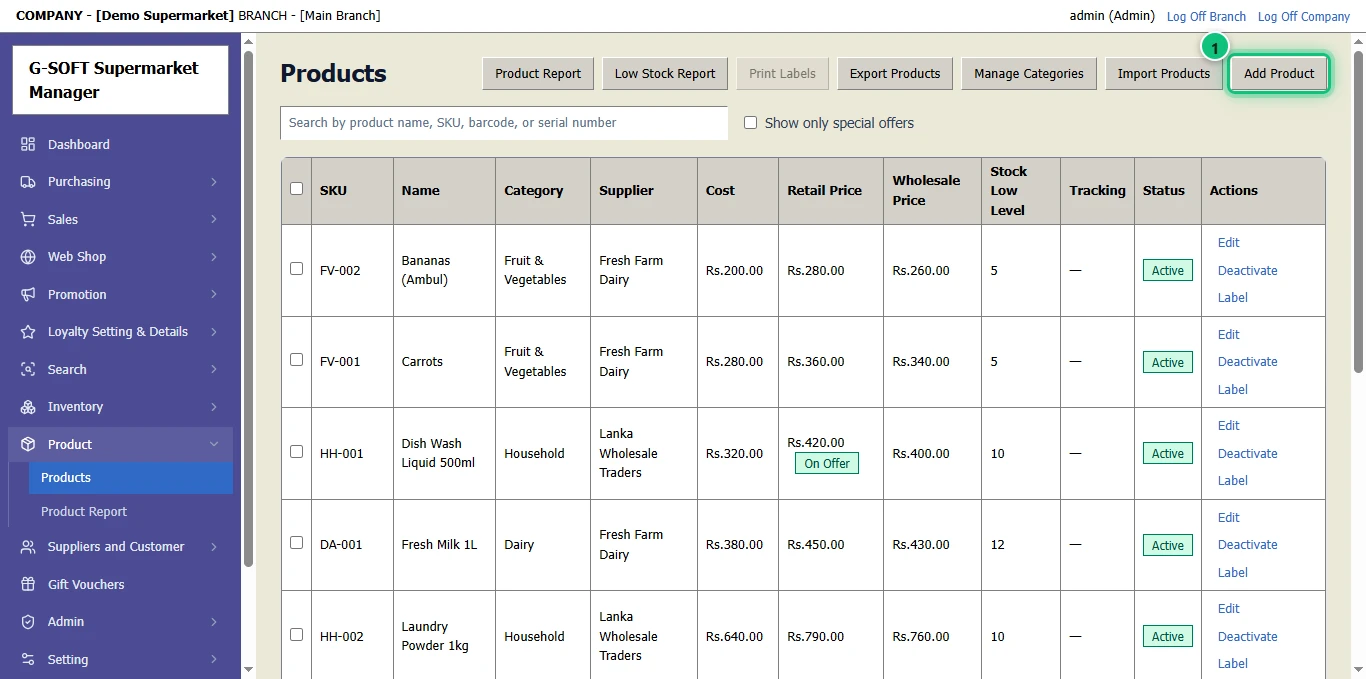
- Open Product → Products in the menu.
- Click Add Product 1.
- මෙනුවේ Product → Products විවෘත කරන්න.
- Add Product 1 ක්ලික් කරන්න.
Step 2 of 5පියවර 2 / 5
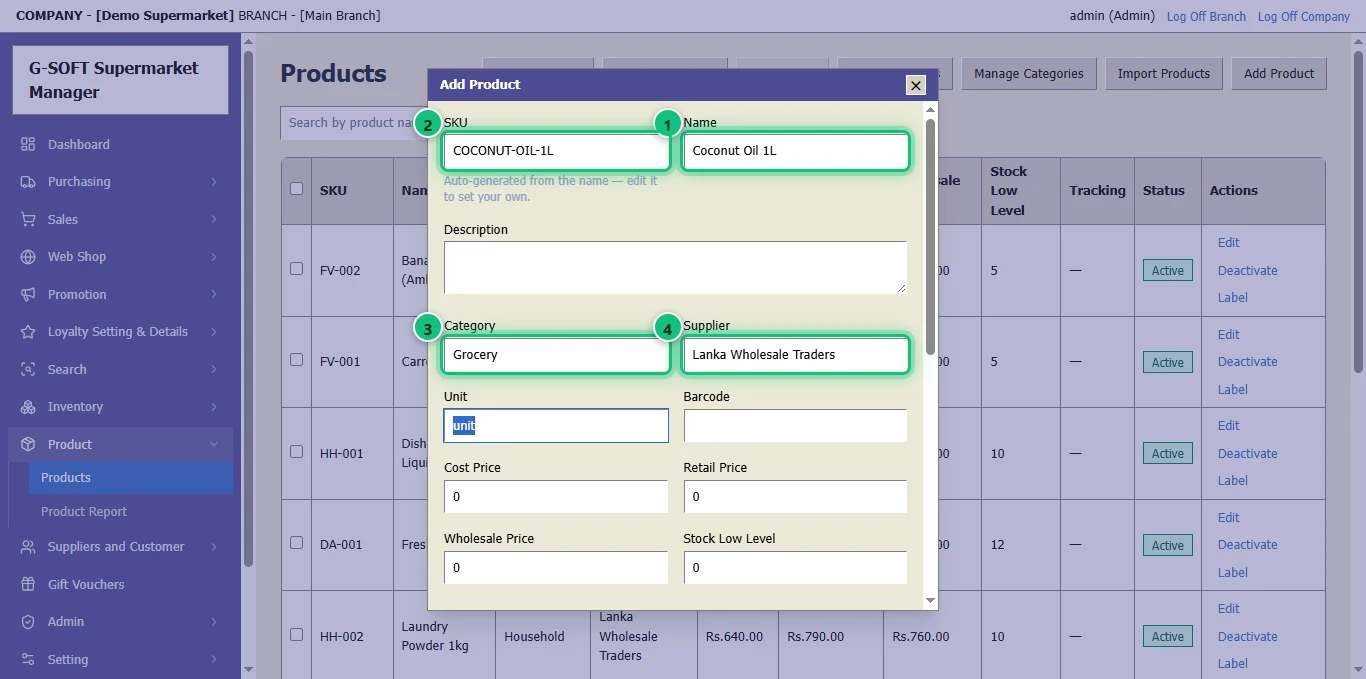
- Type the Name 1.
- The SKU 2 is made from the name for you — you can change it.
- Choose the Category 3 and the Supplier 4: start typing and pick from the list.
- Name 1 ඇතුළත් කරන්න.
- SKU 2 නමෙන් ස්වයංක්රීයව සෑදේ — අවශ්ය නම් වෙනස් කරන්න.
- Category 3 සහ Supplier 4 තෝරන්න: ටයිප් කිරීමට පටන් ගෙන ලැයිස්තුවෙන් තෝරන්න.
Step 3 of 5පියවර 3 / 5
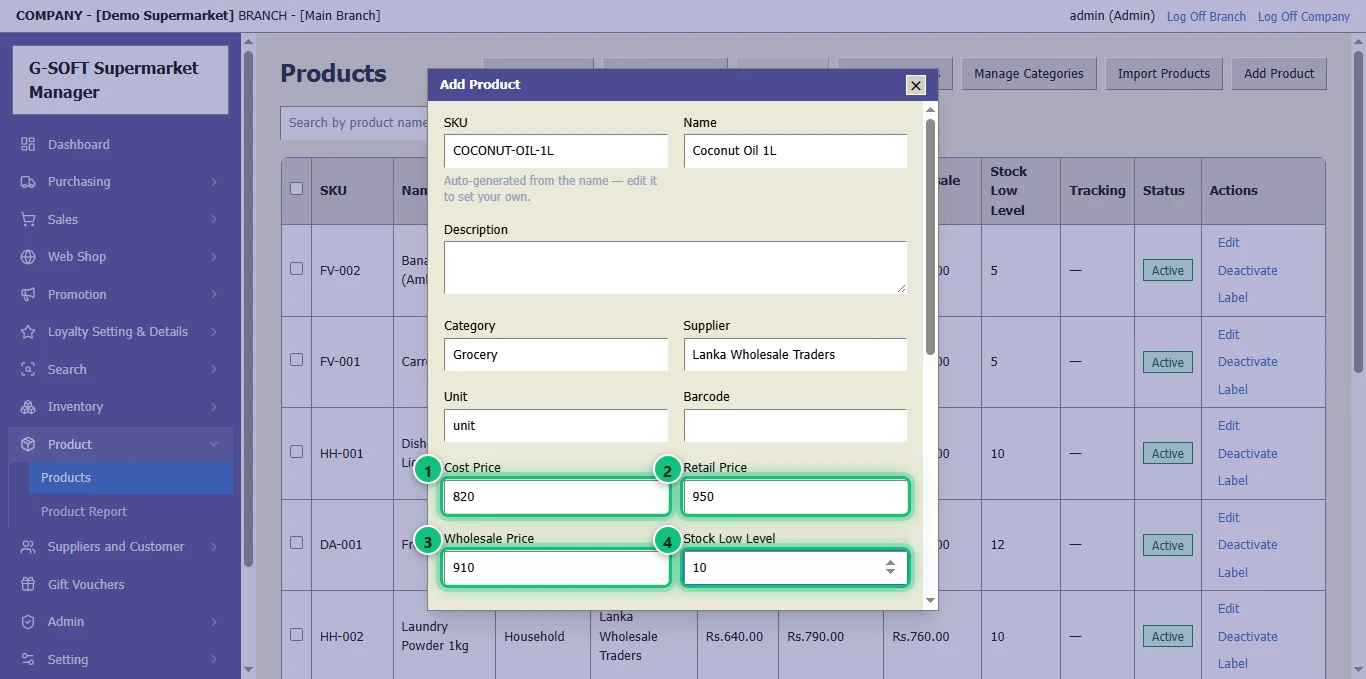
- Type the Cost Price 1 — what you pay for one.
- Type the Retail Price 2 and the Wholesale Price 3 you sell for.
- Stock Low Level 4: when stock falls to this number, the product shows in the low-stock list.
- Cost Price 1 — එකක් සඳහා ඔබ ගෙවන මිල — ඇතුළත් කරන්න.
- ඔබ විකුණන Retail Price 2 සහ Wholesale Price 3 ඇතුළත් කරන්න.
- Stock Low Level 4: තොගය මෙම ගණනට අඩු වූ විට, භාණ්ඩය අඩු තොග ලැයිස්තුවේ පෙන්වයි.
Step 4 of 5පියවර 4 / 5
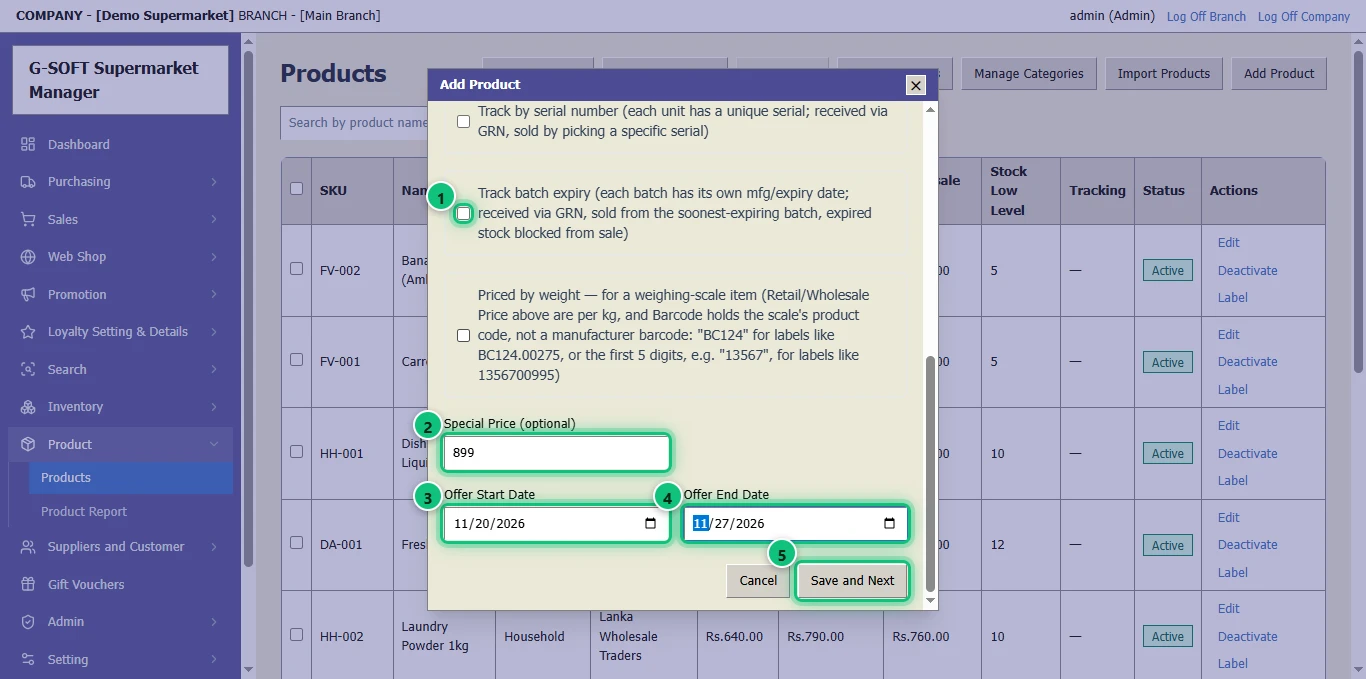
- Scan the product’s Barcode into the Barcode box (above) so the till can scan it.
- For milk, yoghurt and anything with an expiry date, tick Track batch expiry 1: each delivery is kept as its own batch with its expiry date, the till sells the batch that expires first, and expired stock cannot be sold.
- Special Price 2: an offer price for a few days. Set the Offer Start Date 3 and Offer End Date 4 — the till uses the offer price only between those dates, and the product shows On Offer.
- Click Save and Next 5. The form stays open, empty, for the next product.
- ටිල් එකේ ස්කෑන් කිරීමට හැකි වන සේ භාණ්ඩයේ Barcode එක Barcode කොටුවට (ඉහළින්) ස්කෑන් කරන්න.
- කිරි, යෝගට් සහ කල් ඉකුත් දිනයක් ඇති ඕනෑම දෙයකට Track batch expiry 1 සලකුණු කරන්න: සෑම තොග ලැබීමක්ම එහි කල් ඉකුත් දිනය සමඟ වෙනම බැච් එකක් ලෙස තැබේ, ටිල් එක මුලින්ම කල් ඉකුත් වන බැච් එක විකුණයි, කල් ඉකුත් වූ තොග විකිණිය නොහැක.
- Special Price 2: දින කිහිපයකට දීමනා මිලක්. Offer Start Date 3 සහ Offer End Date 4 දෙන්න — එම දින අතර පමණක් ටිල් එක දීමනා මිල භාවිතා කරන අතර භාණ්ඩය On Offer ලෙස පෙන්වයි.
- Save and Next 5 ක්ලික් කරන්න. ඊළඟ භාණ්ඩය සඳහා පෝරමය හිස්ව විවෘතව පවතී.
Step 5 of 5පියවර 5 / 5
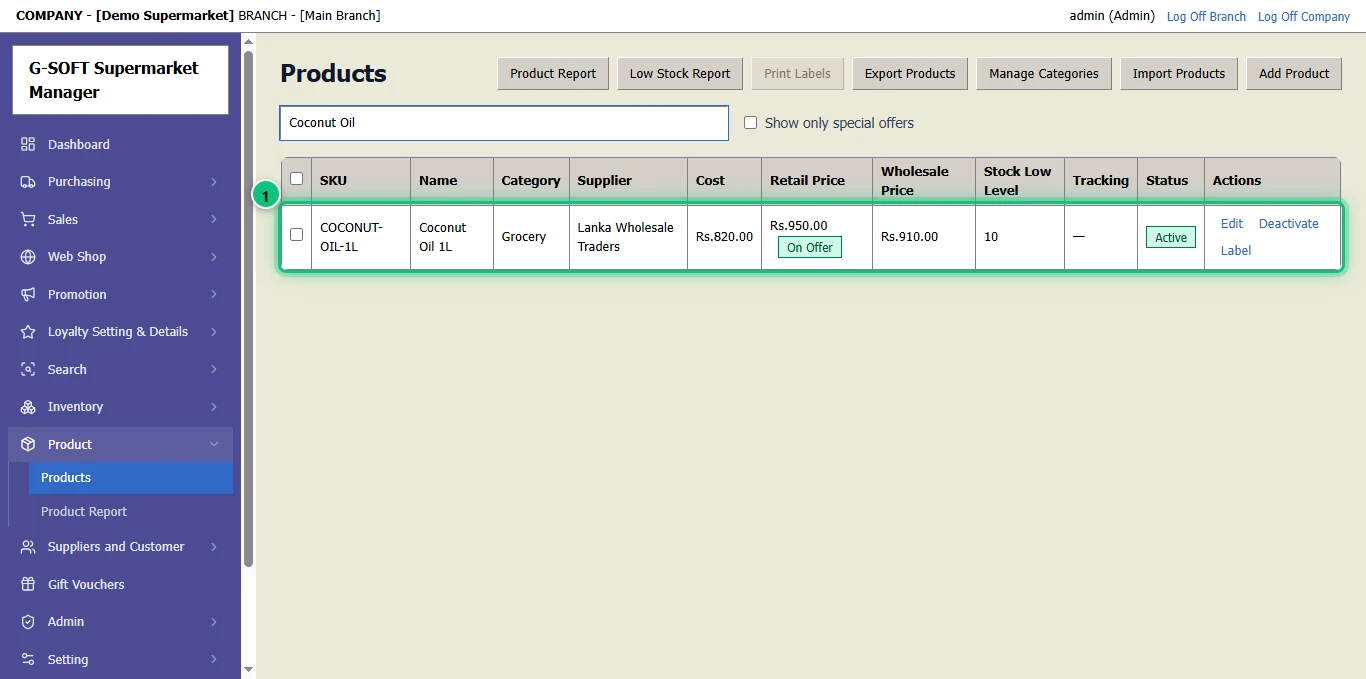
- The new product is in the list 1. Its stock is 0 until you receive it in a GRN — see "Receive stock (GRN)".
- නව භාණ්ඩය ලැයිස්තුවේ ඇත 1. GRN එකකින් ලැබෙන තුරු එහි තොගය 0 කි — "තොග ලබාගැනීම (GRN)" බලන්න.