
Home / Help / G-SOFT Play Zone
Topic 15 of 16මාතෘකාව 15 / 16
Company details and capacity
Your name, address and logo on every receipt, and the most children allowed inside at once.
Step 1 of 2පියවර 1 / 2
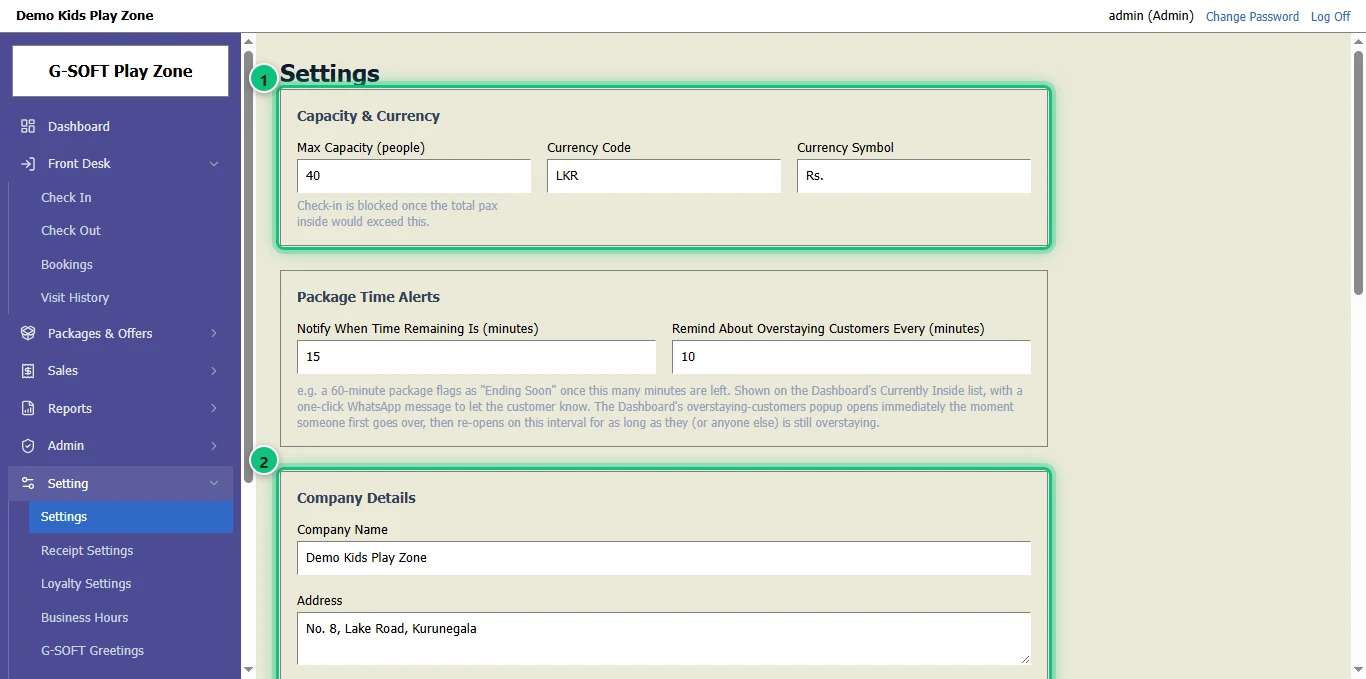
- Open Setting → Settings.
- Capacity & Currency 1: the maximum number of people inside at once — check-in and bookings warn when it is full.
- Company Details 2: your name, address, phone and logo, printed on every receipt.
- Setting → Settings විවෘත කරන්න.
- Capacity & Currency 1: එකවර ඇතුළත සිටිය හැකි උපරිම පුද්ගලයින් ගණන — එය පිරුණු විට check-in සහ වෙන්කිරීම් අනතුරු අඟවයි.
- Company Details 2: සෑම රිසිට්පතකම මුද්රණය වන ඔබේ නම, ලිපිනය, දුරකථනය සහ ලාංඡනය.
Step 2 of 2පියවර 2 / 2
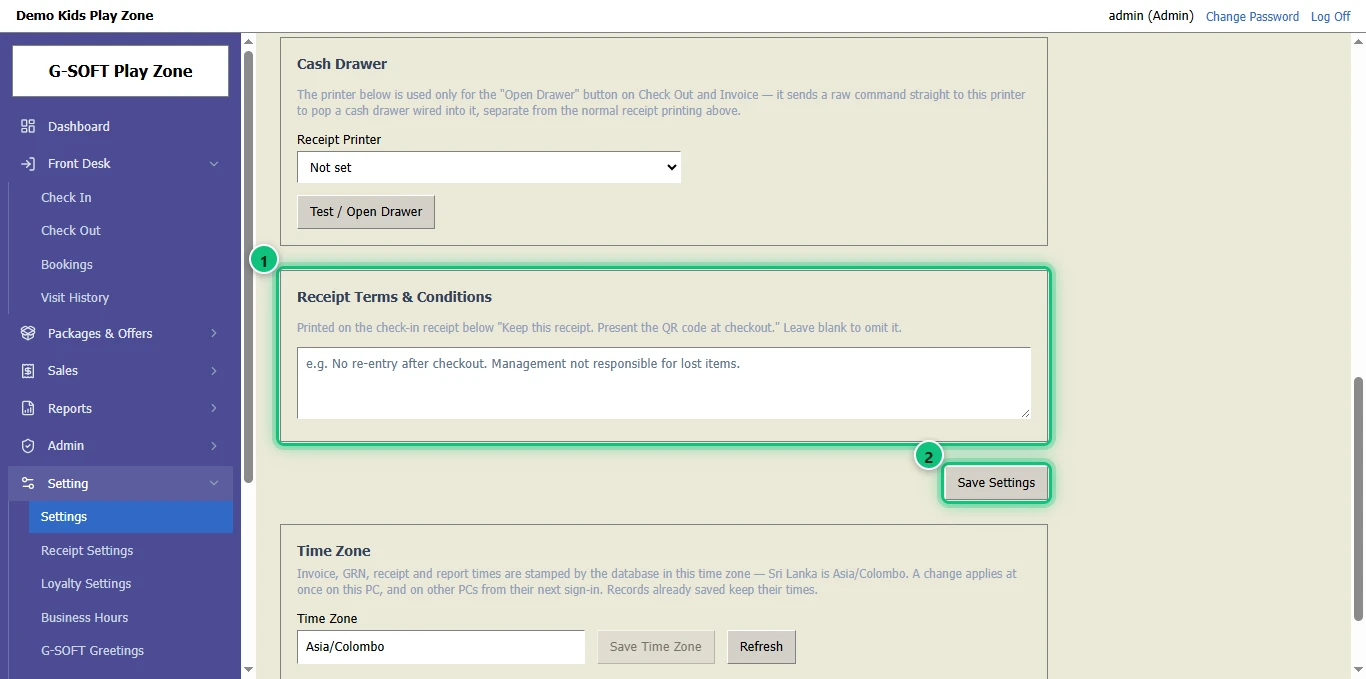
- Receipt Terms & Conditions 1: rules printed at the bottom of the receipt — for example "No re-entry after checkout".
- Click Save Settings 2. The look of the receipt (size, fonts, language) is in Setting → Receipt Settings.
- Receipt Terms & Conditions 1: රිසිට්පතේ පහළින් මුද්රණය වන නීති — උදා: "පිට වූ පසු නැවත ඇතුළු වීම නැත".
- Save Settings 2 ක්ලික් කරන්න. රිසිට්පතේ පෙනුම (ප්රමාණය, අකුරු, භාෂාව) Setting → Receipt Settings හි ඇත.