
Home / Help / G-SOFT Textile Manager
Topic 9 of 16මාතෘකාව 9 / 16
Take back a sold item (sales return)
When a customer brings an item back, record a sales return. The item goes back into stock and the customer gets their money or credit back.
Step 1 of 3පියවර 1 / 3
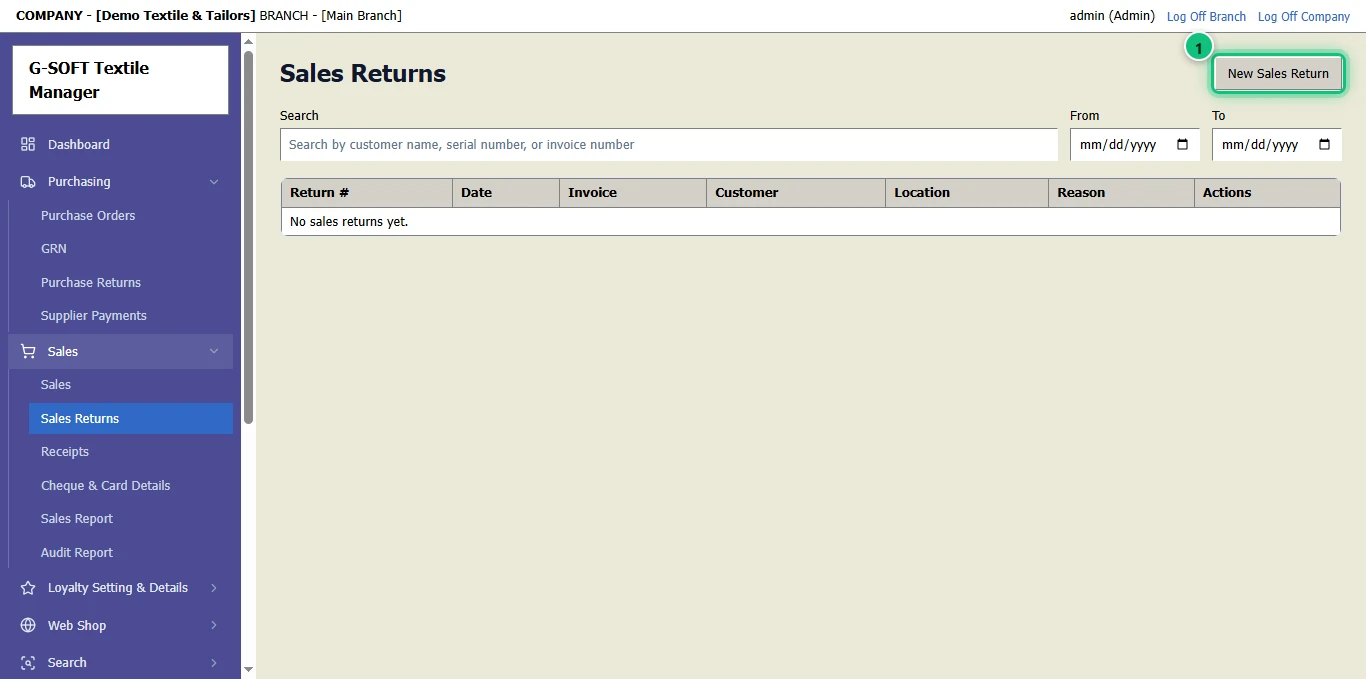
- Open Sales → Sales Returns.
- Click New Sales Return 1.
- Sales → Sales Returns විවෘත කරන්න.
- New Sales Return 1 ක්ලික් කරන්න.
Step 2 of 3පියවර 2 / 3
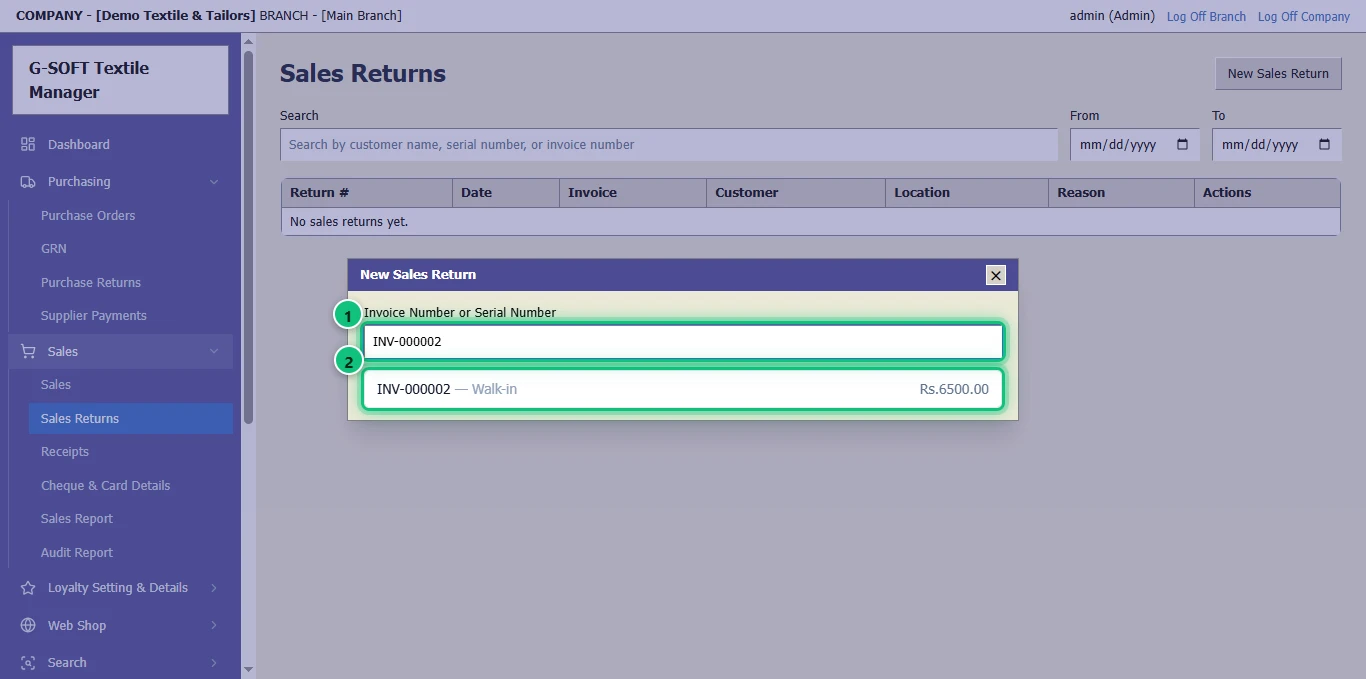
- Type the invoice number 1 printed on the customer’s bill.
- Click the invoice 2.
- ගනුදෙනුකරුගේ බිලේ මුද්රණය කර ඇති ඉන්වොයිස් අංකය 1 ටයිප් කරන්න.
- ඉන්වොයිසිය 2 ක්ලික් කරන්න.
Step 3 of 3පියවර 3 / 3
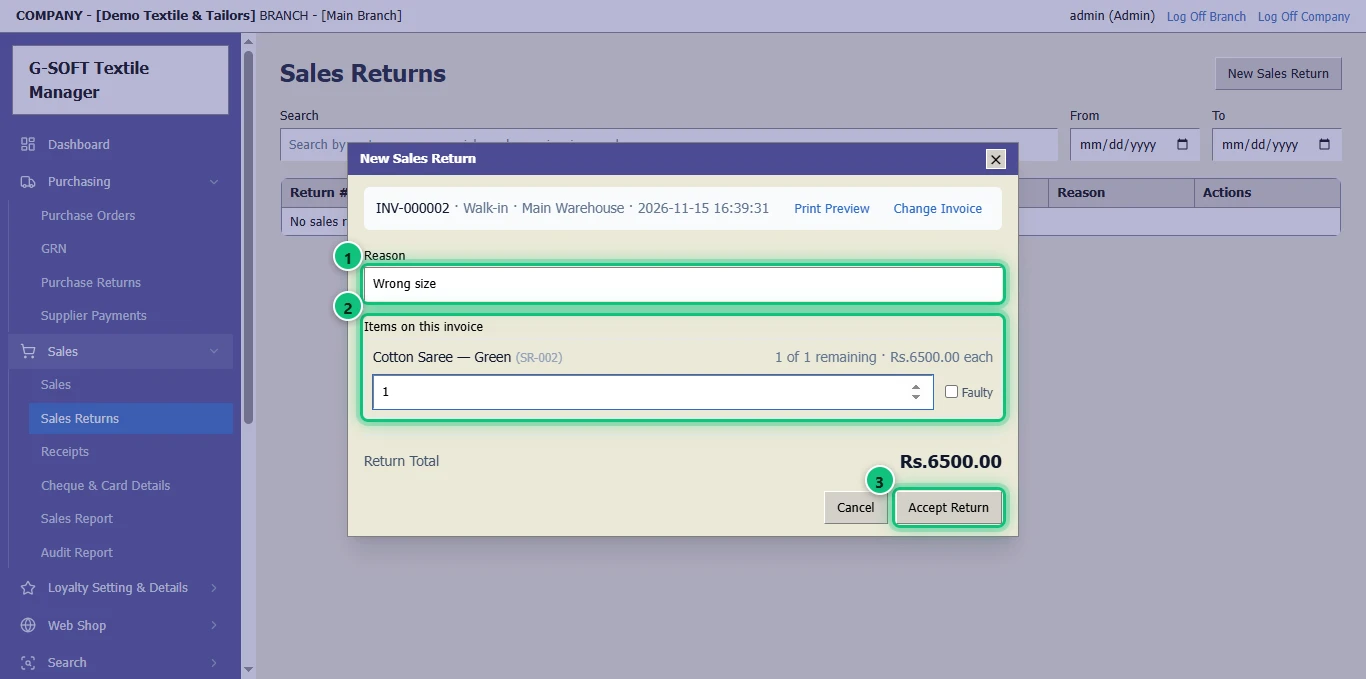
- Write the Reason 1.
- For each item coming back 2, type the quantity. Tick Faulty only if the item is damaged: it is then kept out of the stock you can sell.
- Click Accept Return 3. The item goes back into stock; on a credit invoice the amount comes off what the customer owes.
- Reason 1 — හේතුව — ලියන්න.
- ආපසු එන සෑම භාණ්ඩයක් සඳහාම 2 ප්රමාණය ටයිප් කරන්න. භාණ්ඩය හානි වී ඇත්නම් පමණක් Faulty සලකුණු කරන්න: එවිට එය විකිණිය හැකි තොගයෙන් ඉවතට තැබේ.
- Accept Return 3 ක්ලික් කරන්න. භාණ්ඩය නැවත තොගයට එකතු වේ; ණය ඉන්වොයිසියක් නම් ගනුදෙනුකරු ගෙවිය යුතු මුදලින් අඩු වේ.