
Home / Help / G-SOFT Supermarket Manager
Topic 10 of 16මාතෘකාව 10 / 16
Take a credit payment (receipt)
When a credit customer pays, record it as a receipt. The payment is set against their unpaid invoices.
Step 1 of 3පියවර 1 / 3
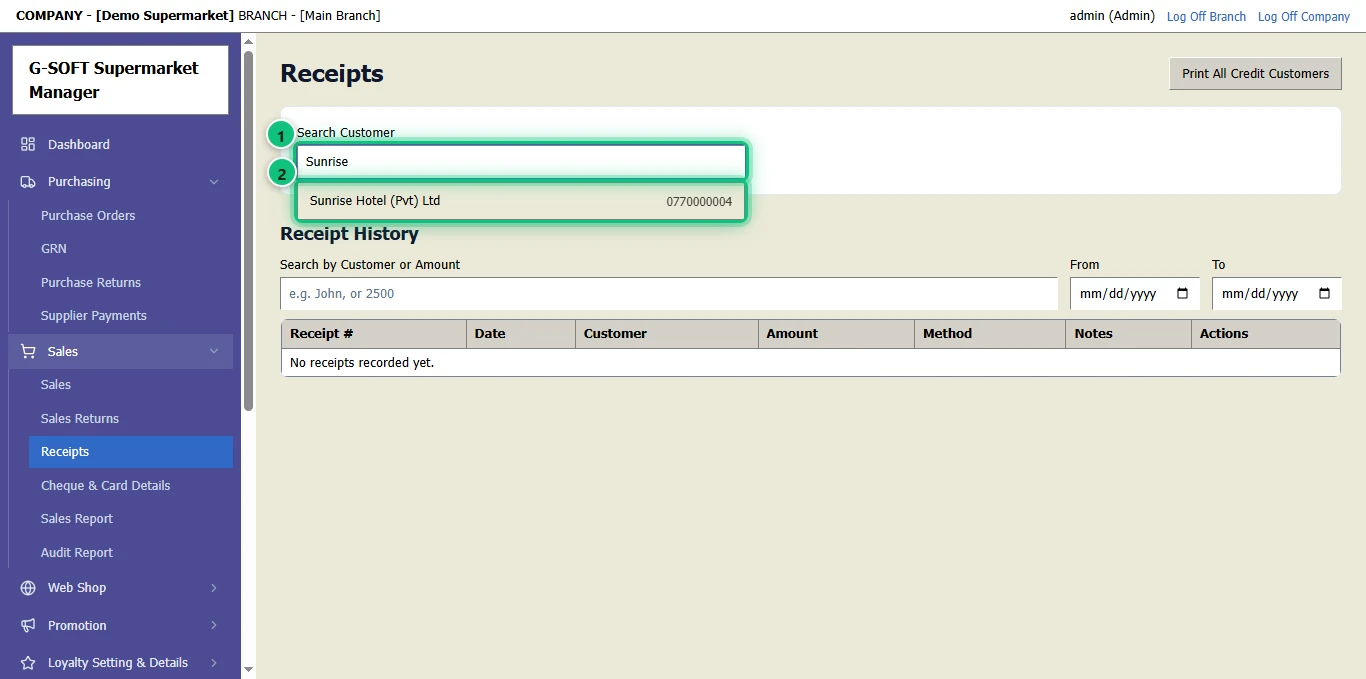
- Open Sales → Receipts.
- Type the customer’s name in Search Customer 1 and pick them 2.
- Sales → Receipts විවෘත කරන්න.
- Search Customer 1 හි ගනුදෙනුකරුගේ නම ටයිප් කර තෝරන්න 2.
Step 2 of 3පියවර 2 / 3
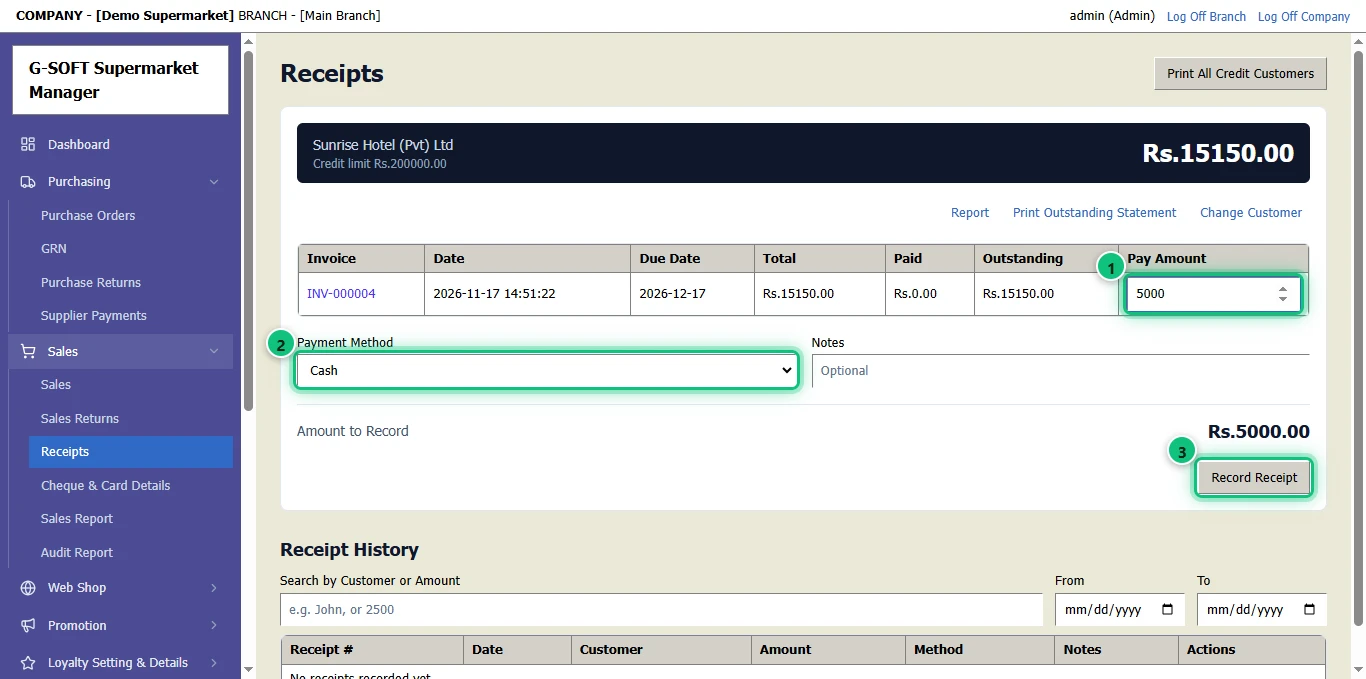
- Their unpaid invoices are listed. Type how much they pay against each invoice in Pay Amount 1.
- Choose the Payment Method 2: Cash, Card, Cheque or Bank transfer (fill in the bank details it asks for).
- Check the Amount to Record and click Record Receipt 3.
- නොගෙවූ ඉන්වොයිස් ලැයිස්තුගත වේ. එක් එක් ඉන්වොයිසියට ගෙවන මුදල Pay Amount 1 හි ඇතුළත් කරන්න.
- Payment Method 2 තෝරන්න: Cash, Card, Cheque හෝ බැංකු මාරුව (අසන බැංකු විස්තර පුරවන්න).
- Amount to Record පරීක්ෂා කර Record Receipt 3 ක්ලික් කරන්න.
Step 3 of 3පියවර 3 / 3
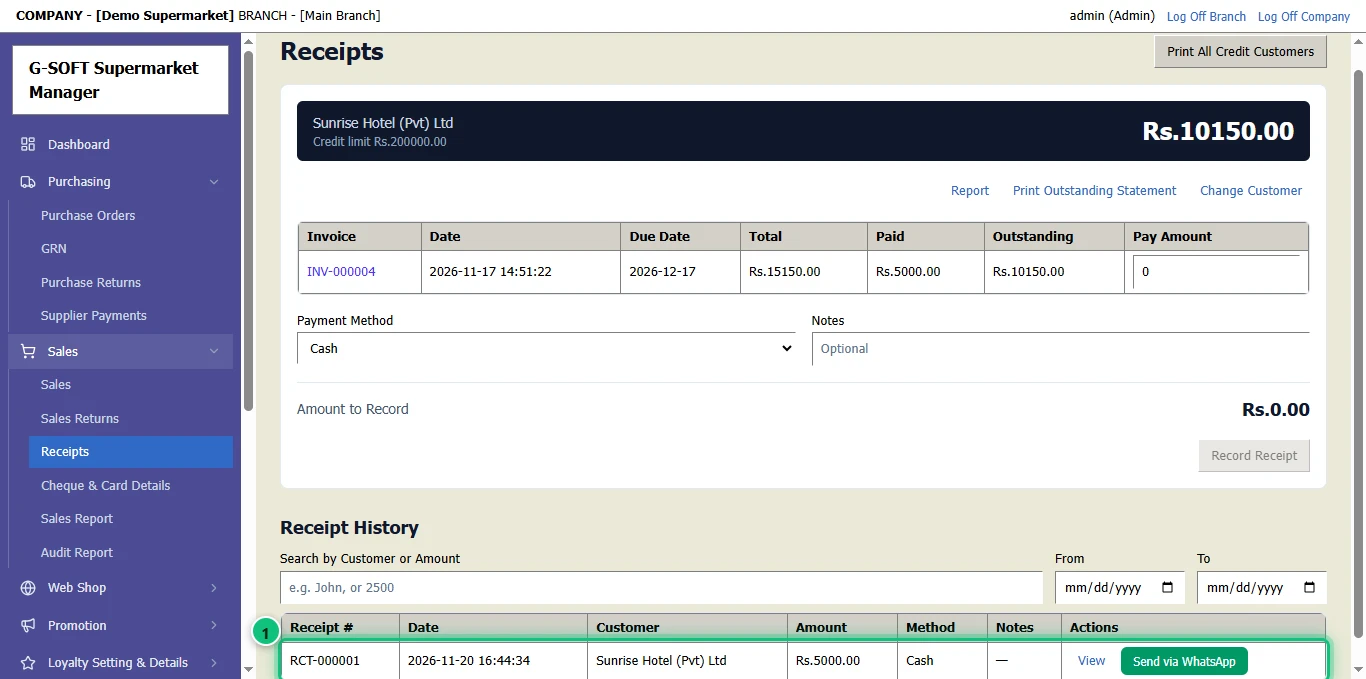
- The receipt is saved and the customer now owes less. It is listed in Receipt History 1, where you can print it or send it by WhatsApp / SMS.
- Print Outstanding Statement (at the top) prints everything the customer still owes.
- රිසිට්පත සුරකින ලද අතර ගනුදෙනුකරු ගෙවිය යුතු මුදල අඩු විය. එය Receipt History 1 හි ලැයිස්තුගත වේ — එතැනින් මුද්රණය කරන්න හෝ WhatsApp / SMS මගින් යවන්න.
- Print Outstanding Statement (ඉහළින්) ගනුදෙනුකරු තවමත් ගෙවිය යුතු සියල්ල මුද්රණය කරයි.