
Home / Help / G-SOFT Supermarket Manager
Topic 8 of 16මාතෘකාව 8 / 16
Make an invoice
Sell to a customer: add the items, choose how they pay, and print the invoice.
Step 1 of 11පියවර 1 / 11
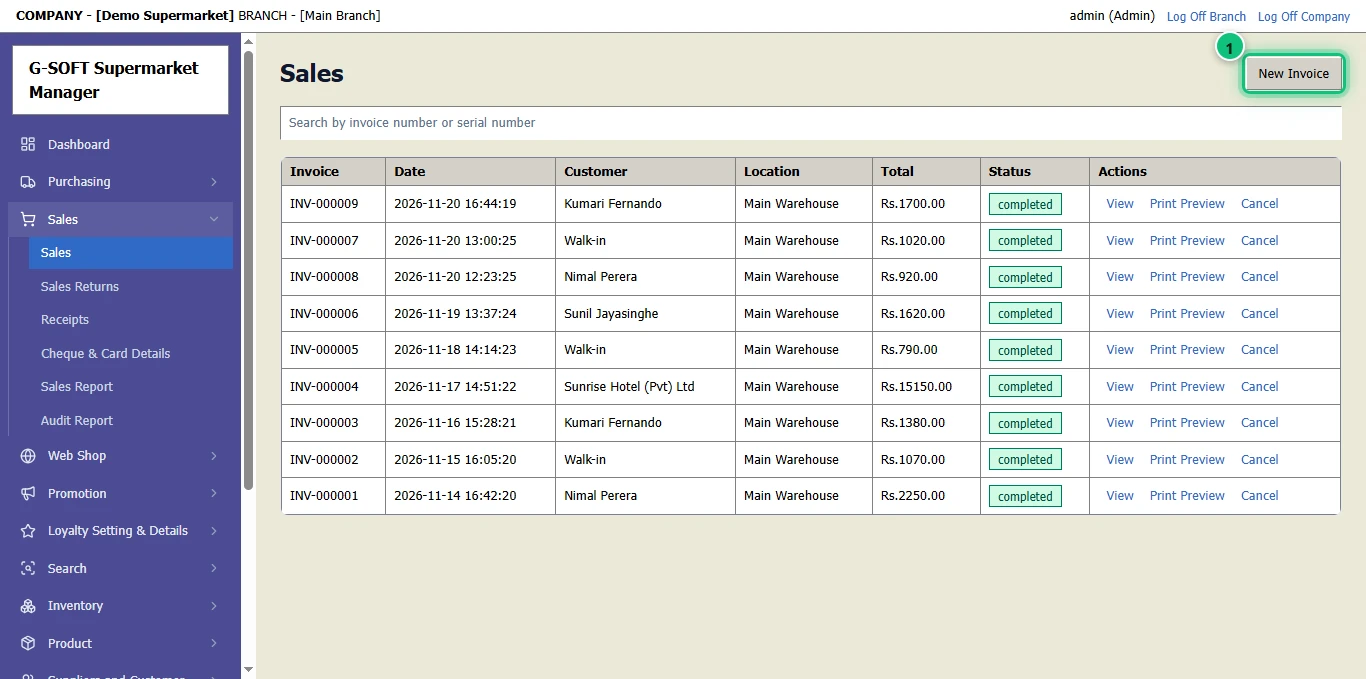
- Open Sales → Sales — or press F2 from any screen.
- Click New Invoice 1.
- Sales → Sales විවෘත කරන්න — නැතහොත් ඕනෑම තිරයක සිට F2 ඔබන්න.
- New Invoice 1 ක්ලික් කරන්න.
Step 2 of 11පියවර 2 / 11
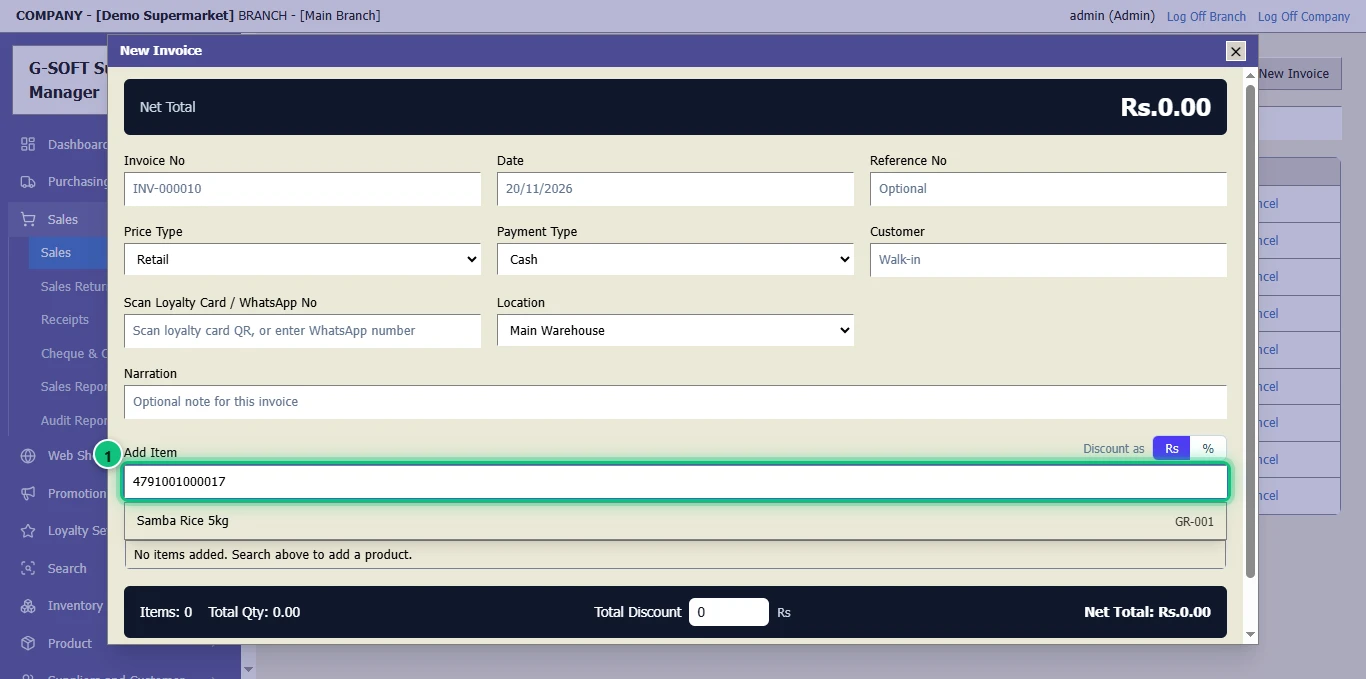
- Scan the barcode of each item into Add Item 1. The scanner presses Enter and the item is added with quantity 1. Scan it again to add one more.
- No barcode? Type part of the name and pick it from the list.
- සෑම භාණ්ඩයකම බාකෝඩ් එක Add Item 1 වෙත ස්කෑන් කරන්න. ස්කෑනරය Enter ඔබන අතර භාණ්ඩය ප්රමාණය 1 ලෙස එක් වේ. තවත් එකක් එක් කිරීමට නැවත ස්කෑන් කරන්න.
- බාකෝඩ් නැද්ද? නමේ කොටසක් ටයිප් කර ලැයිස්තුවෙන් තෝරන්න.
Step 3 of 11පියවර 3 / 11
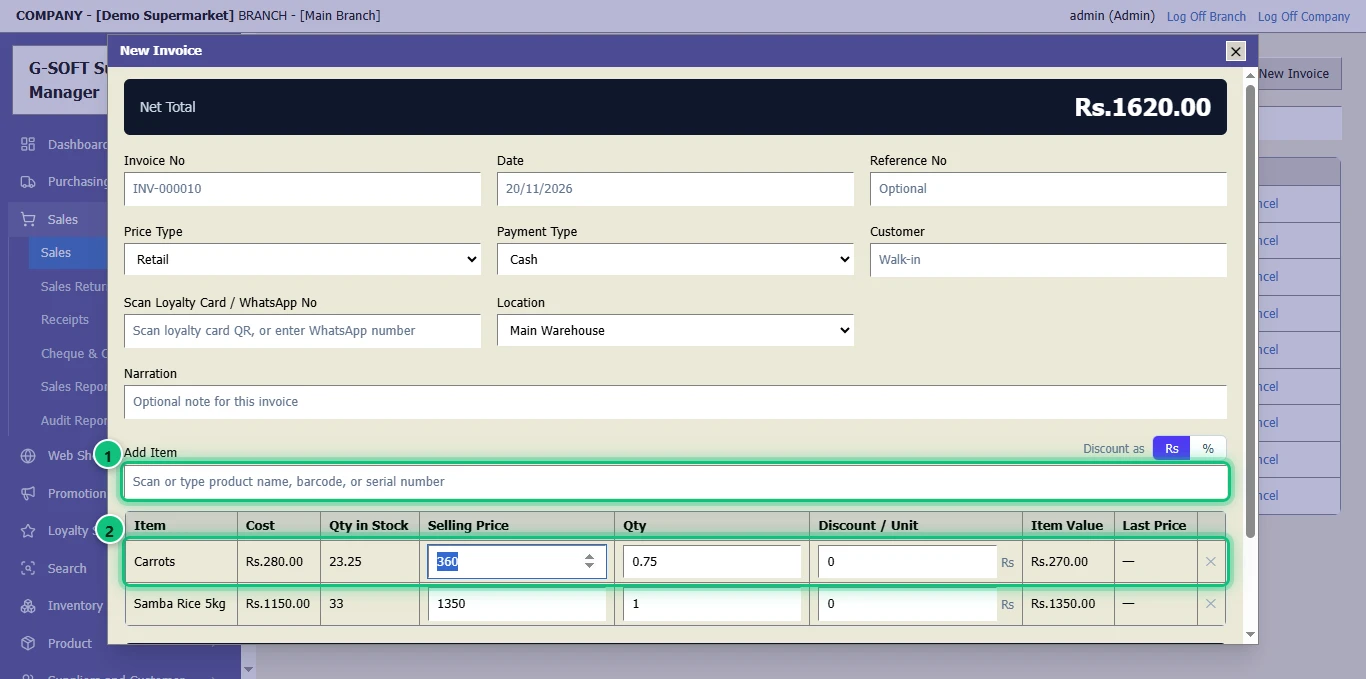
- For vegetables and fruit, scan the weighing scale’s label 1 — for example FV001.00750. The program finds the product and adds it 2: Carrots, 0.75 kg at the price per kg.
- එළවළු සහ පළතුරු සඳහා තරාදියේ ලේබලය ස්කෑන් කරන්න 1 — උදා: FV001.00750. වැඩසටහන භාණ්ඩය (කැරට්) සොයාගෙන කිලෝවක මිලට කිලෝ 0.750 ක් එක් කරයි.
Step 4 of 11පියවර 4 / 11
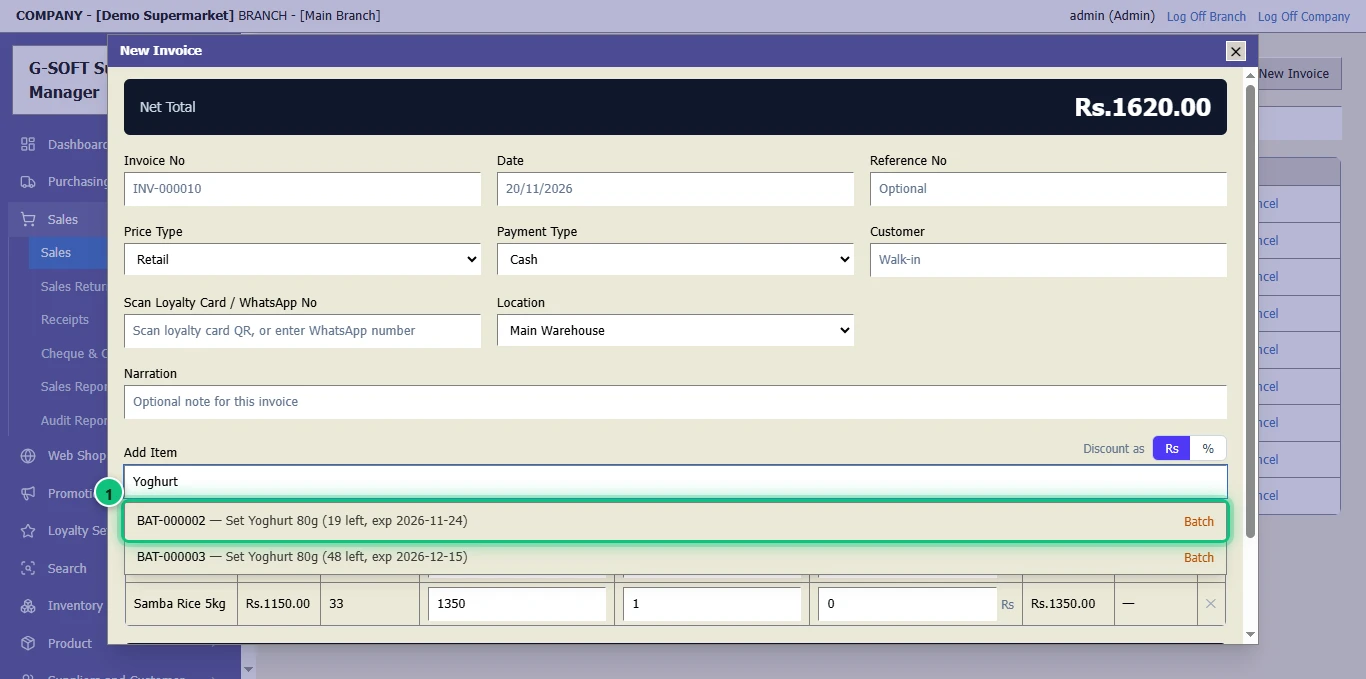
- A product kept by batch shows each batch with how many are left and its expiry date. The batch that expires first is at the top 1 — sell that one first. Expired batches are never offered.
- බැච් අනුව තබන භාණ්ඩයක් සෑම බැච් එකක්ම ඉතිරි ප්රමාණය සහ කල් ඉකුත් දිනය සමඟ පෙන්වයි. මුලින්ම කල් ඉකුත් වන බැච් එක ඉහළින්ම ඇත 1 — එය මුලින් විකුණන්න. කල් ඉකුත් වූ බැච් කිසිවිටෙක පෙන්වන්නේ නැත.
Step 5 of 11පියවර 5 / 11
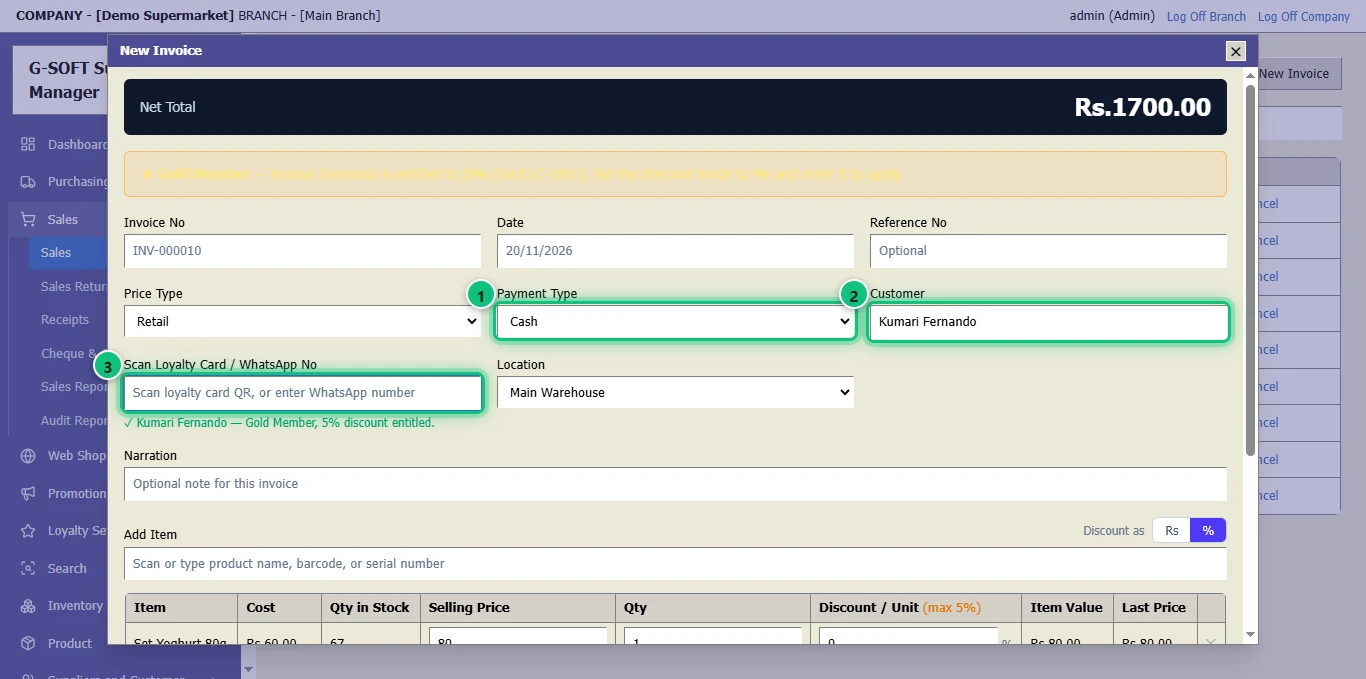
- Choose the Payment Type 1: Cash, Card, Bank Transfer, Cheque, Credit or Gift Voucher.
- For a known customer, type their name in Customer 2 and pick them. Leave it empty for a walk-in customer.
- Loyalty customer? Scan their loyalty card 3 — or type their WhatsApp number and press Enter. Their name is filled in, and a note at the top shows the discount their card gives — type it in Total Discount (the program never takes a discount off by itself).
- Payment Type 1 තෝරන්න: Cash, Card, Bank Transfer, Cheque, Credit හෝ Gift Voucher.
- හඳුනන ගනුදෙනුකරුවෙකු නම් Customer 2 හි නම ටයිප් කර තෝරන්න. සාමාන්ය ගනුදෙනුකරුවෙකු නම් හිස්ව තබන්න.
- ලෝයල්ටි ගනුදෙනුකරුවෙක්ද? ඔවුන්ගේ ලෝයල්ටි කාඩ්පත ස්කෑන් කරන්න 3 — නැතහොත් WhatsApp අංකය ටයිප් කර Enter ඔබන්න. නම පිරවෙන අතර, කාඩ්පතෙන් ලැබෙන වට්ටම ඉහළින් සටහනක පෙන්වයි — එය Total Discount හි ටයිප් කරන්න (වැඩසටහන තනිවම වට්ටමක් අඩු නොකරයි).
Step 6 of 11පියවර 6 / 11
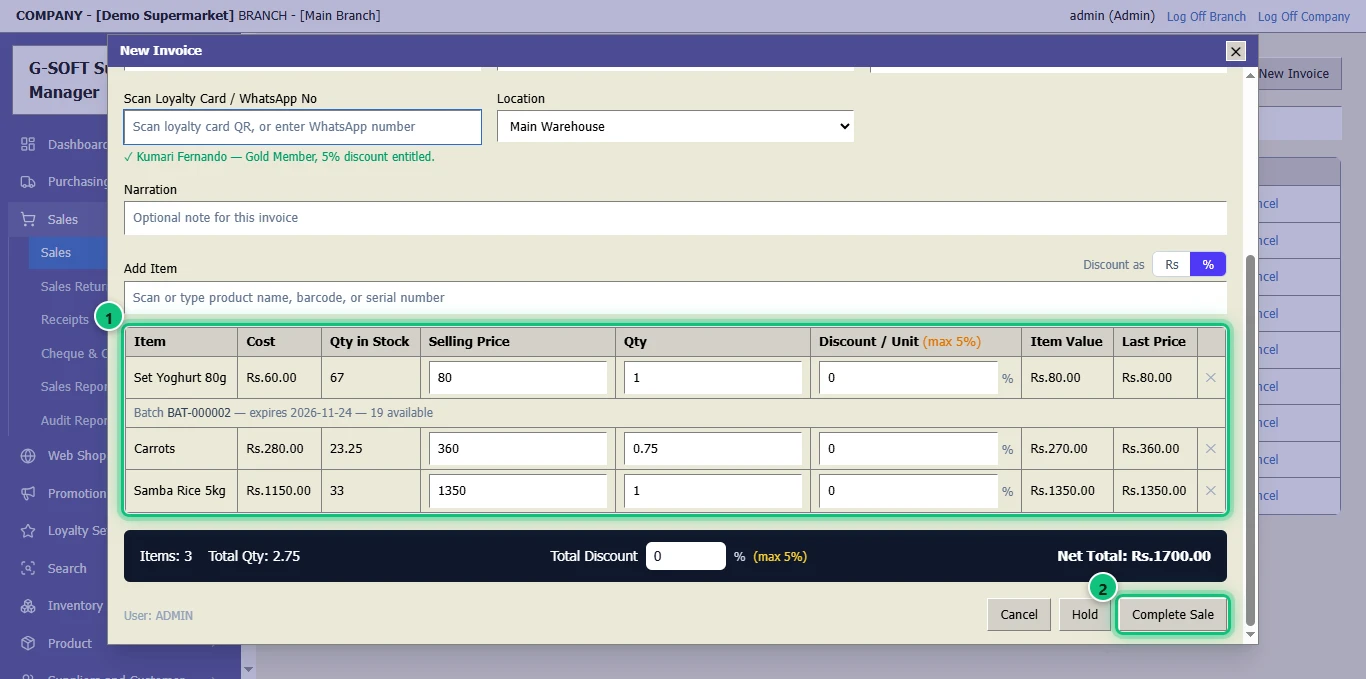
- Check the items 1: change the Qty, Selling Price or Discount if needed. The Net Total is at the bottom.
- Click Complete Sale 2.
- භාණ්ඩ 1 පරීක්ෂා කරන්න: අවශ්ය නම් Qty, Selling Price හෝ Discount වෙනස් කරන්න. Net Total පහළින් ඇත.
- Complete Sale 2 ක්ලික් කරන්න.
Step 7 of 11පියවර 7 / 11
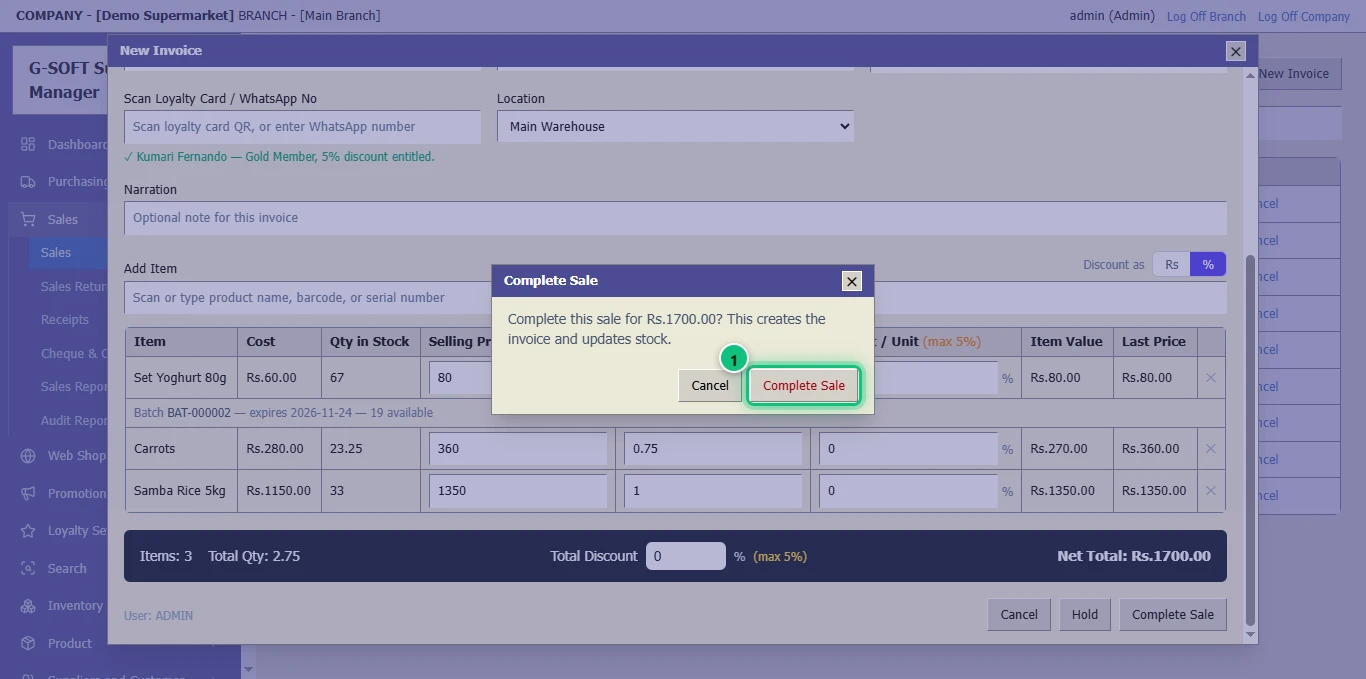
- Check the amount and click Complete Sale 1 again. The invoice is saved and the stock goes down.
- මුදල පරීක්ෂා කර නැවත Complete Sale 1 ක්ලික් කරන්න. ඉන්වොයිසිය සුරැකෙන අතර තොගය අඩු වේ.
Step 8 of 11පියවර 8 / 11
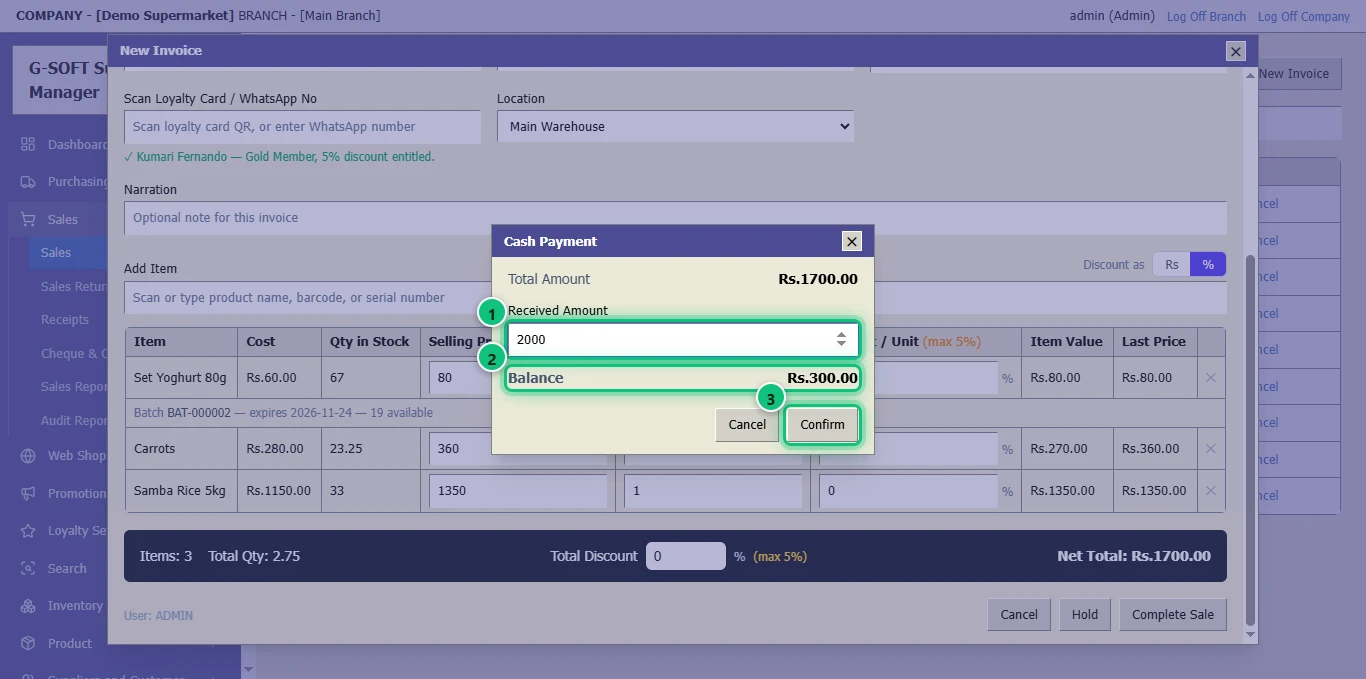
- For a cash sale, type the Received Amount 1 — the money the customer gave you.
- The Balance 2 is the change to give back.
- Click Confirm 3.
- මුදල් විකුණුමක් නම්, Received Amount 1 — ගනුදෙනුකරු දුන් මුදල — ඇතුළත් කරන්න.
- Balance 2 යනු ආපසු දිය යුතු ඉතිරි මුදලයි.
- Confirm 3 ක්ලික් කරන්න.
Step 9 of 11පියවර 9 / 11
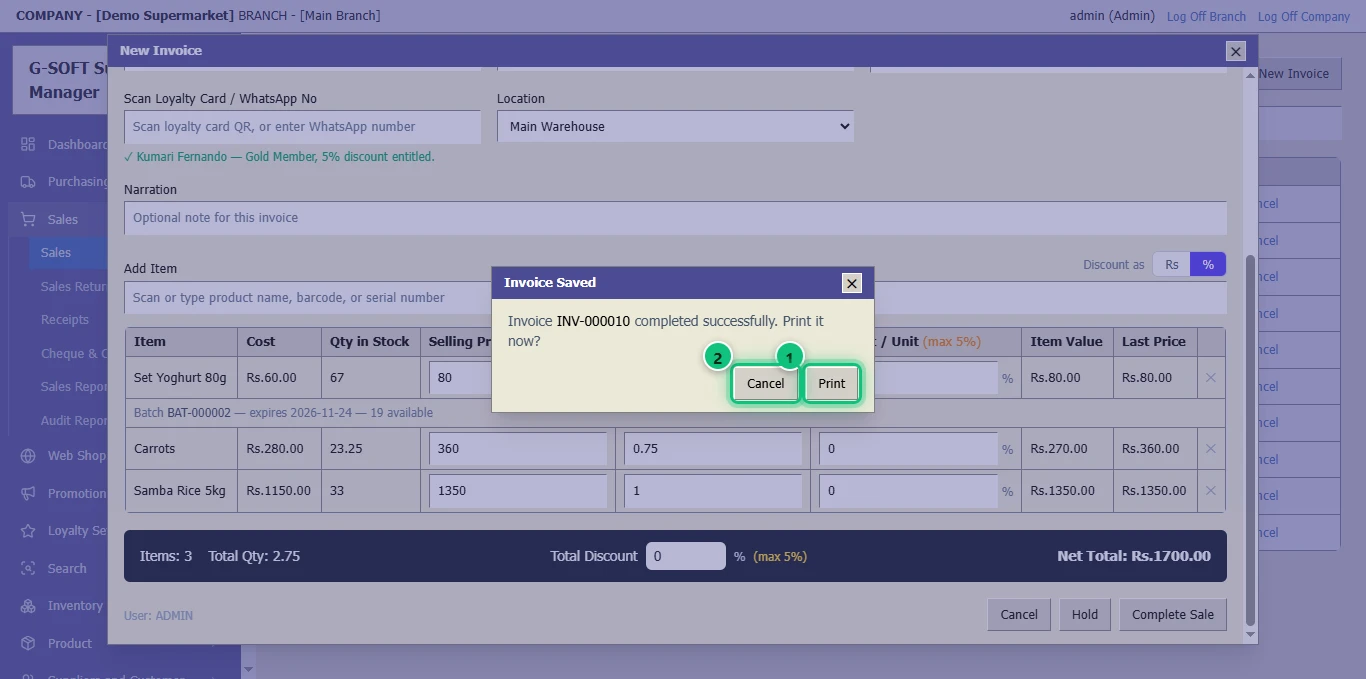
- The invoice is saved. Click Print 1 to print it on your invoice printer, or Cancel 2 to skip printing — you can print it later.
- Either way, a new empty invoice opens, ready for the next customer.
- ඉන්වොයිසිය සුරකින ලදී. ඉන්වොයිස් මුද්රණ යන්ත්රයෙන් මුද්රණය කිරීමට Print 1, මුද්රණය නොකිරීමට Cancel 2 ක්ලික් කරන්න — පසුව මුද්රණය කළ හැක.
- කෙසේ වෙතත්, ඊළඟ ගනුදෙනුකරු සඳහා නව හිස් ඉන්වොයිසියක් විවෘත වේ.
Step 10 of 11පියවර 10 / 11
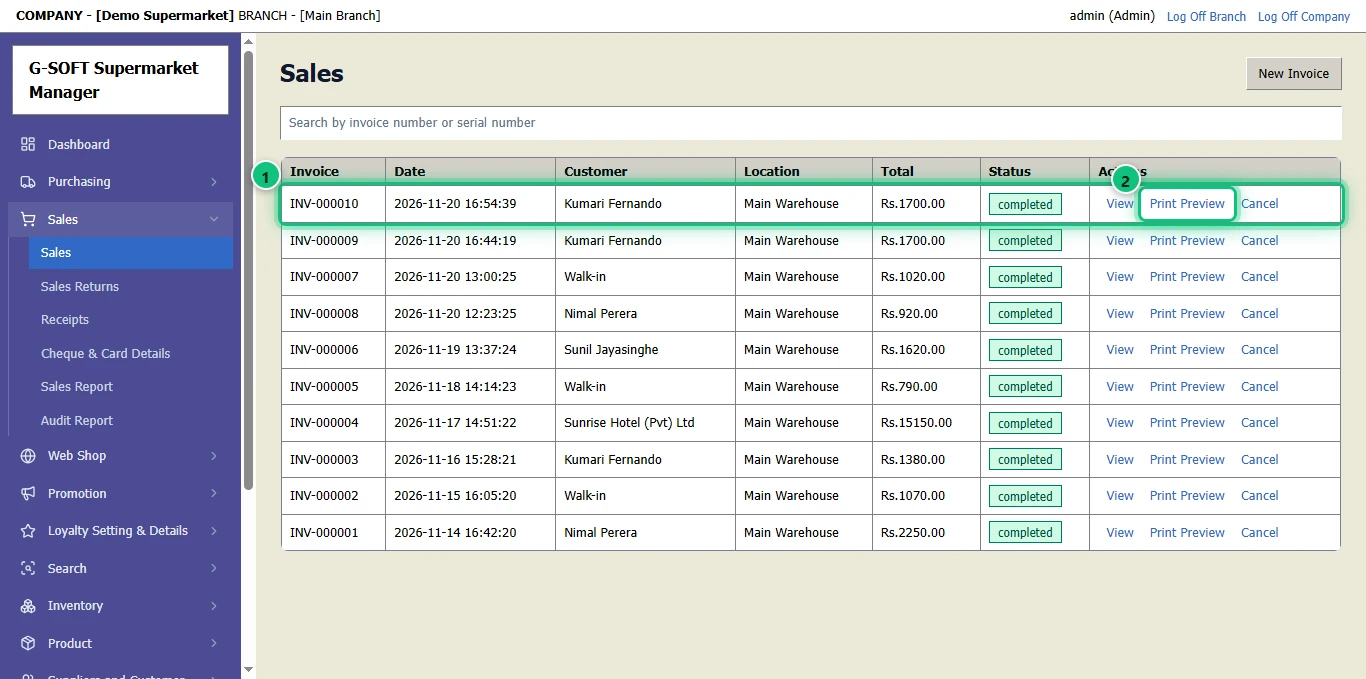
- Every invoice is in the Sales list 1. Search by invoice number at the top.
- Print Preview 2 shows the invoice and prints it again; View shows its details.
- සෑම ඉන්වොයිසියක්ම Sales ලැයිස්තුවේ 1 ඇත. ඉහළින් ඉන්වොයිස් අංකය මගින් සොයන්න.
- Print Preview 2 ඉන්වොයිසිය පෙන්වා නැවත මුද්රණය කරයි; View එහි විස්තර පෙන්වයි.
Step 11 of 11පියවර 11 / 11
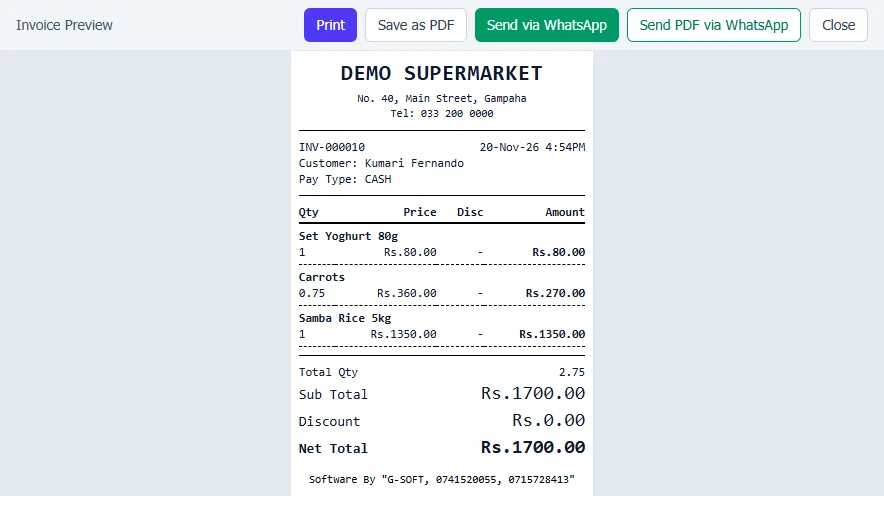
- This is the printed invoice, with your company details and each item — loose items with their weight.
- මෙය මුද්රිත ඉන්වොයිසියයි — ඔබේ සමාගමේ විස්තර සහ සෑම භාණ්ඩයක්ම — ලිහිල් භාණ්ඩ ඒවායේ බර සමඟ.