
Home / Help / G-SOFT Restaurant Manager
Topic 12 of 15මාතෘකාව 12 / 15
Sell and accept a gift voucher
Issue a printed gift voucher for an amount, then accept it as payment on an invoice when it comes back.
Step 1 of 3පියවර 1 / 3
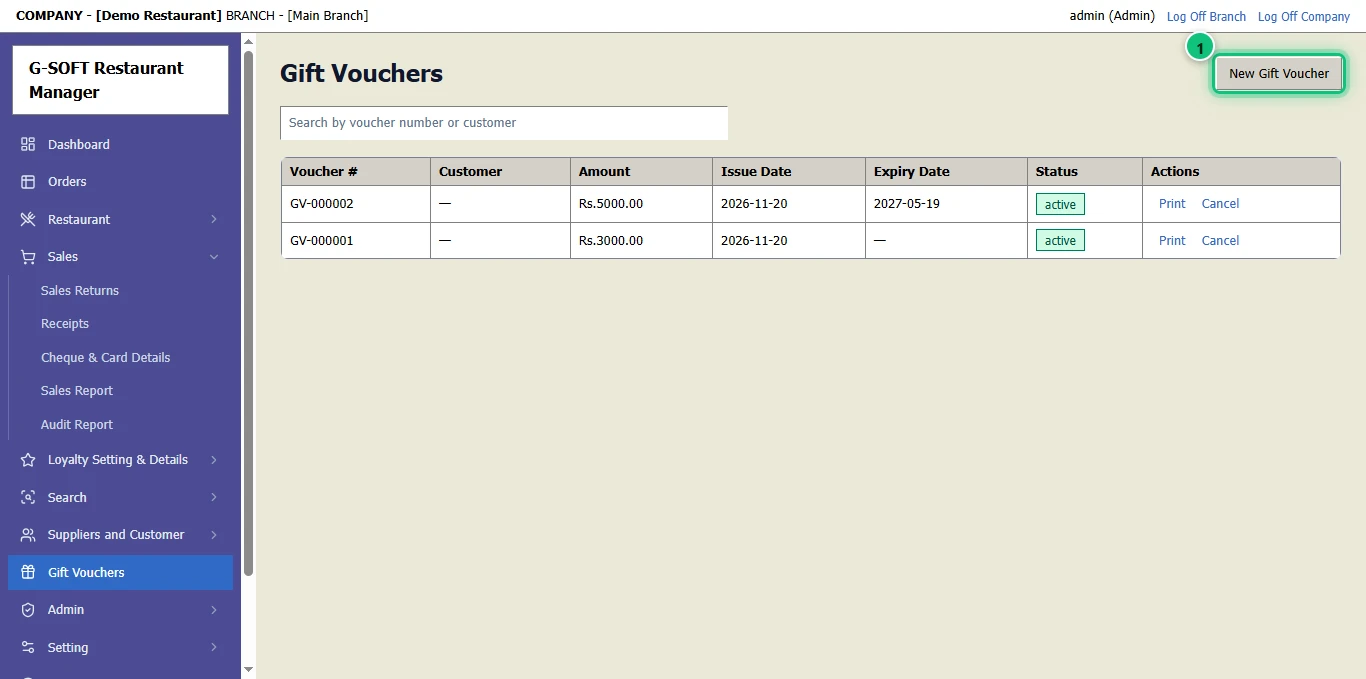
- Open Gift Vouchers in the menu.
- Click New Gift Voucher 1.
- මෙනුවේ Gift Vouchers විවෘත කරන්න.
- New Gift Voucher 1 ක්ලික් කරන්න.
Step 2 of 3පියවර 2 / 3
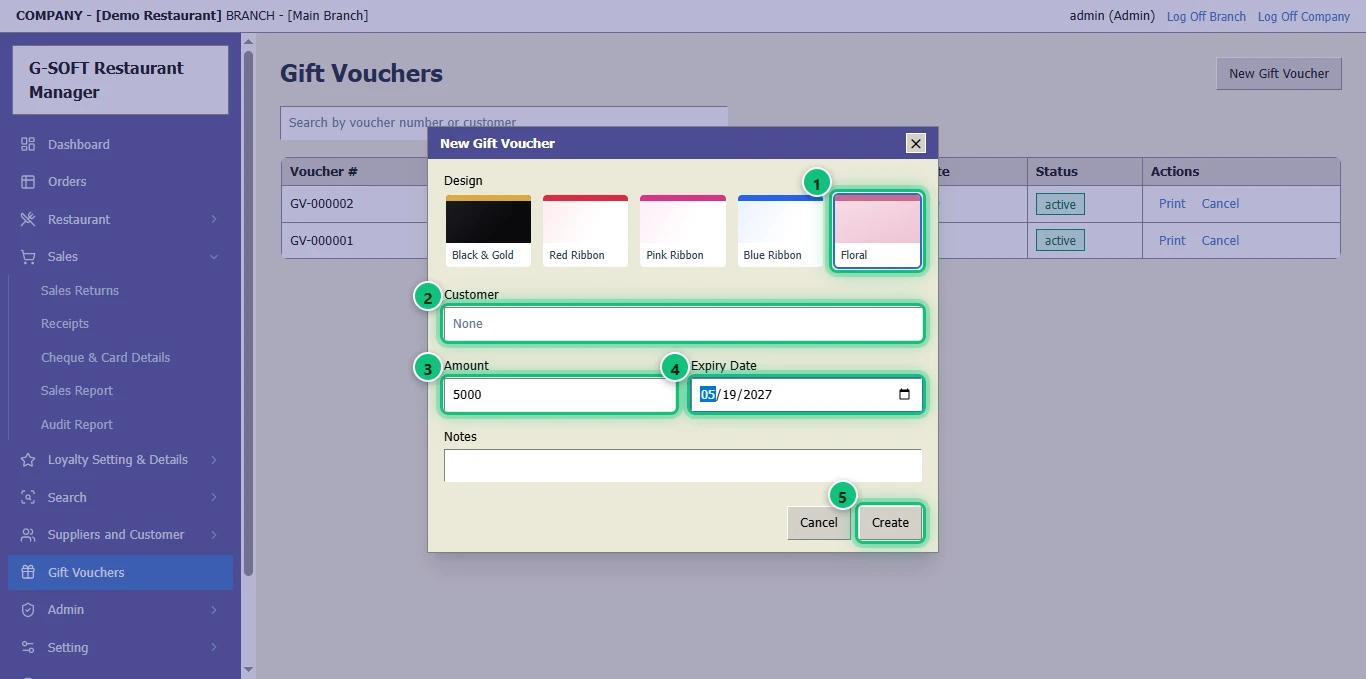
- Choose a Design 1 for the printed voucher.
- Choose the Customer 2 who buys it — optional.
- Type the Amount 3 and an Expiry Date 4.
- Click Create 5.
- මුද්රිත වවුචරය සඳහා Design 1 එකක් තෝරන්න.
- එය මිලදී ගන්නා Customer 2 තෝරන්න — අත්යවශ්ය නැත.
- Amount 3 සහ Expiry Date 4 ඇතුළත් කරන්න.
- Create 5 ක්ලික් කරන්න.
Step 3 of 3පියවර 3 / 3
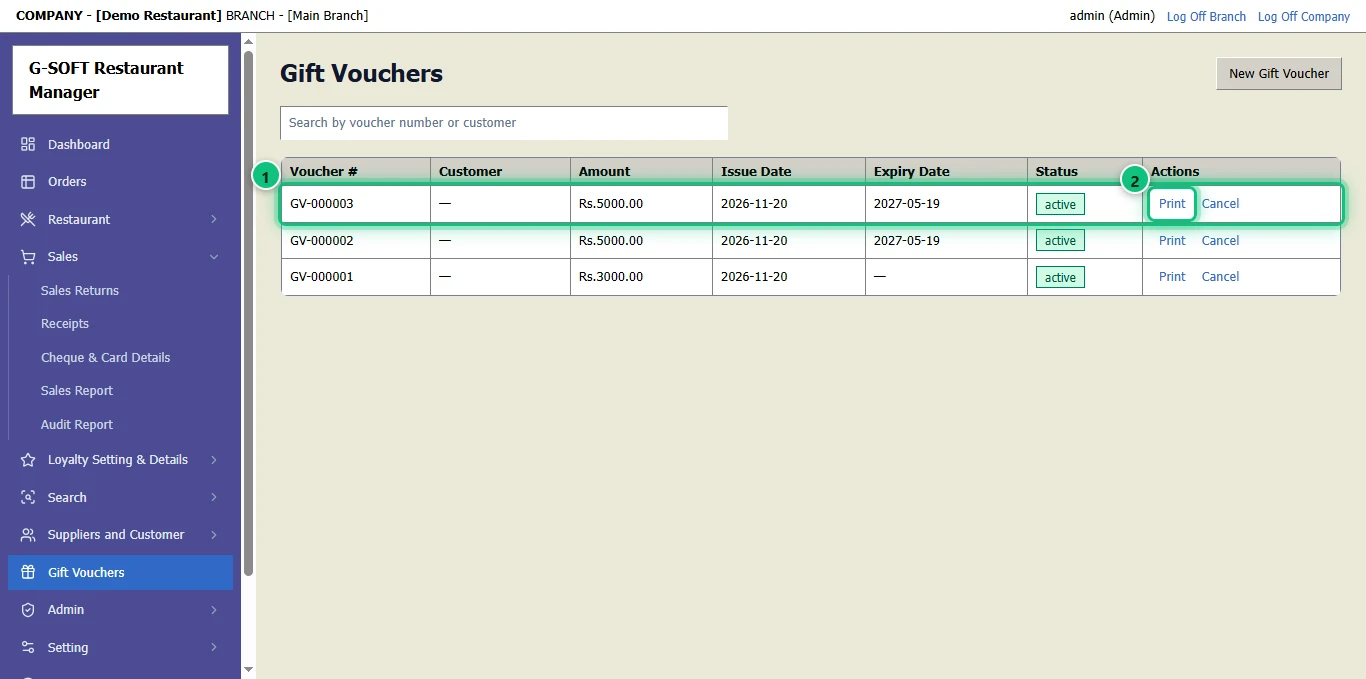
- The voucher is listed 1 with its number, amount and expiry date. The customer pays for it like any sale.
- Print 2 prints the voucher with its QR code.
- To accept a voucher, bill the table as usual and choose Payment Type → Gift Voucher, then scan its QR code or type its number. A used voucher cannot be used again.
- වවුචරය එහි අංකය, මුදල සහ කල් ඉකුත් දිනය සමඟ ලැයිස්තුගත වේ 1. ගනුදෙනුකරු එය ඕනෑම විකුණුමක් මෙන් ගෙවයි.
- Print 2 වවුචරය එහි QR කේතය සමඟ මුද්රණය කරයි.
- වවුචරයක් භාර ගැනීමට, සුපුරුදු පරිදි මේසයේ බිල සාදා Payment Type → Gift Voucher තෝරා, එහි QR කේතය ස්කෑන් කරන්න හෝ අංකය ටයිප් කරන්න. භාවිතා කළ වවුචරයක් නැවත භාවිතා කළ නොහැක.